Bring clarity, capability, and
consistency to your workforce.

HOW TO
ACTIVATE MDM LITE
The easy way to manage VR training devices at scale.
ACTIVATE VIRTUAL REALITY TRAINING
SkillsVR ACTIVATE MDM Lite is the easy way to manage VR training devices at scale.
This page covers setup and troubleshooting. Please note ACTIVATE MDM Lite is self-serve. Live support is not included with the free version.
If you are using Pico, please visit this link.
This page covers setup and troubleshooting. Please note ACTIVATE MDM Lite is self-serve. Live support is not included with the free version.
If you are using Pico, please visit this link.
Setting up your SkillsVR Instance:
To manage your Meta Quest headsets using SkillsVR, you'll first need access to a Meta Horizon managed services (MHMS) account. Follow this guide to connect your organization to MHMS and enroll devices under SkillsVR ACTIVATE MDM. Here is how to configure your organization’s enrollment settings in the SkillsVR ACTIVATE MDM and prepare for integration with Meta Horizon.
1. Navigate to your organization’s Device Management Settings.
2. Tick: Do you have Quest devices?
3. Click: Download Organization Enrollment Token (save this somewhere safe as you will need it for later).
Setting up your Meta HMS Instance:
Instructions on linking the SkillsVR ACTIVATE MDM with your Meta Horizon managed services account using a secure token.

4. Login to your Meta Admin Centre.
5. Navigate to your devices page.
6. Select: Third-party MDMs.
7. Select: Create third-party enrollment to get started.
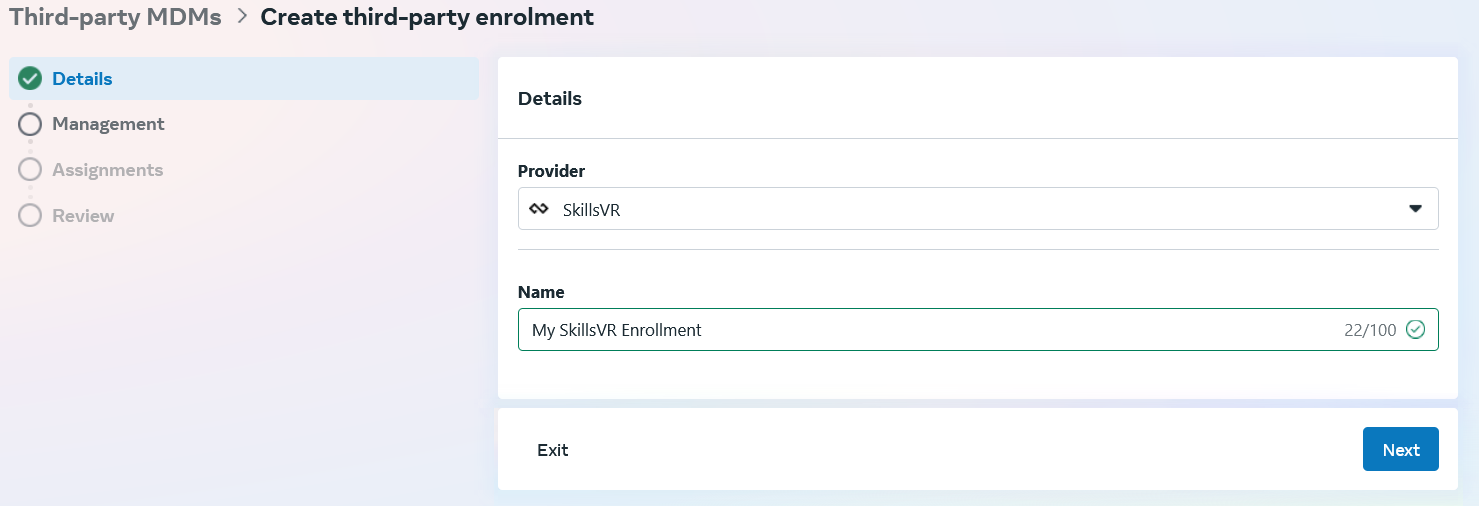
8. Select: SkillsVR as your enrollment provider.
9. Give your enrollment a name, then click: Next.
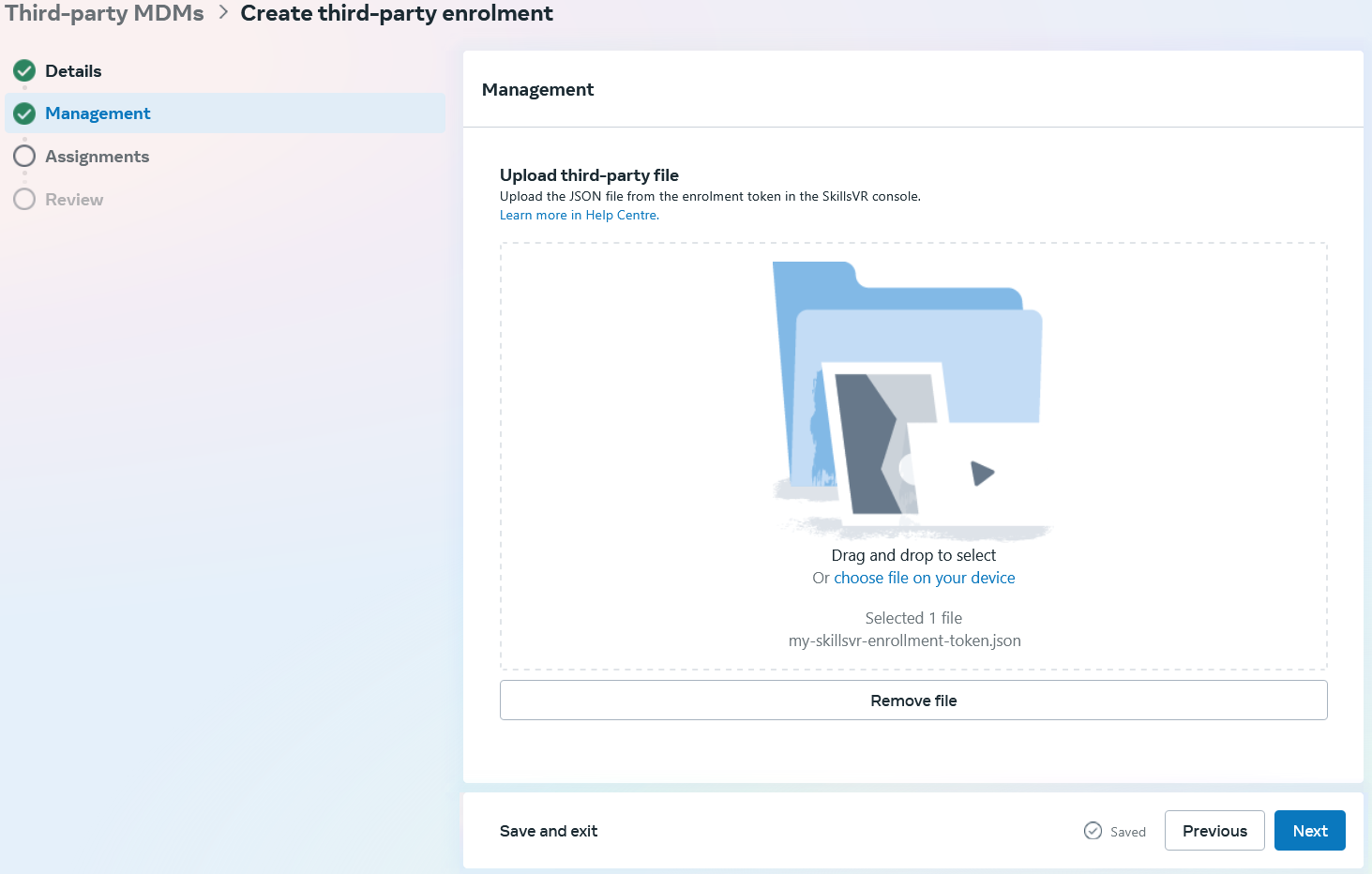
10. Upload your enrollment token, then click: Next.
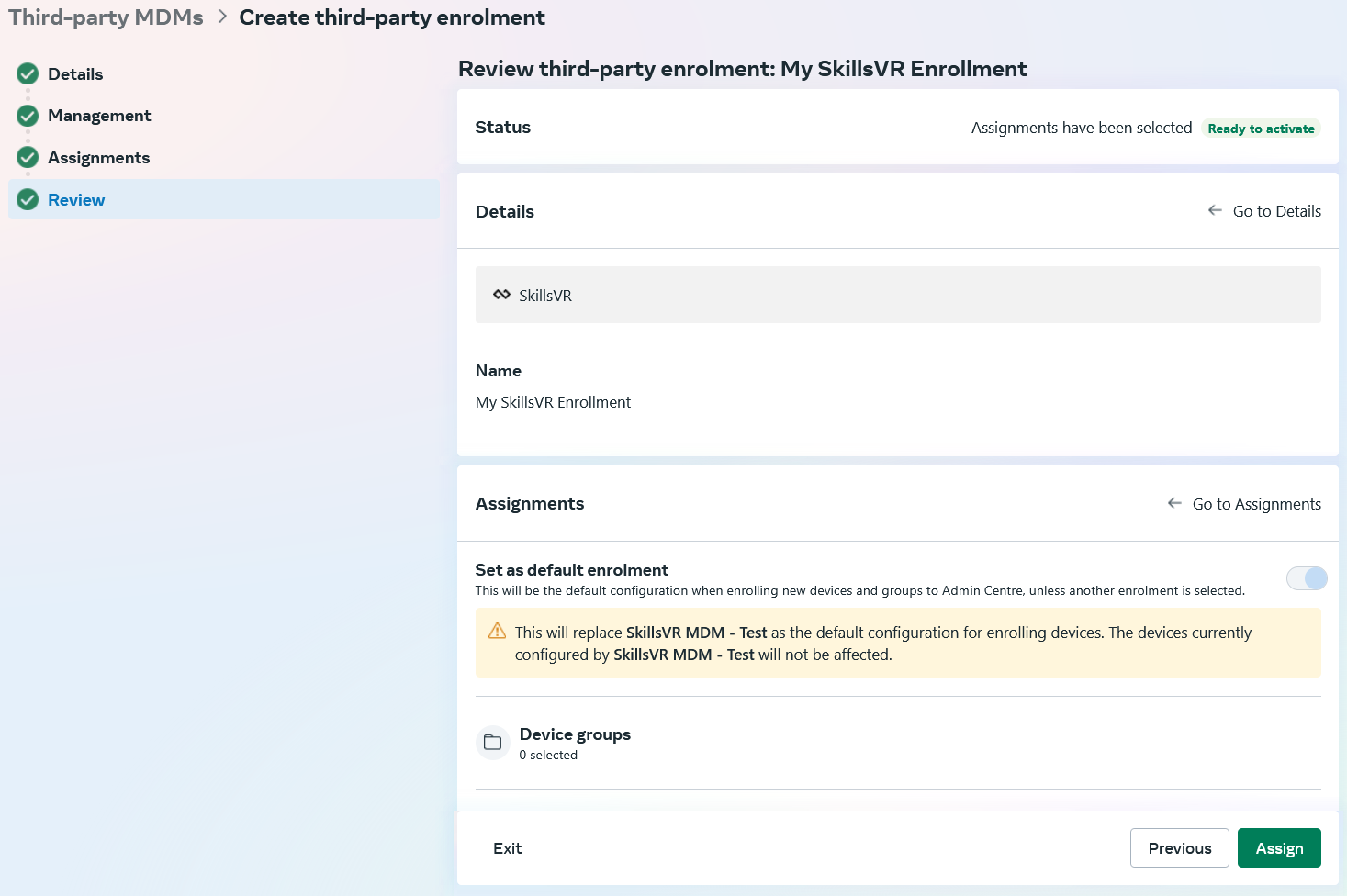
11. Select: Set as default enrollment.
12. Once you have reviewed your new configuration, click: Assign.
Preparing Devices for Setup:
To avoid common issues and speed up provisioning, we recommend the following steps before setting up your headsets:

- Fully charge each headset and insert new AA batteries into the controllers.
- Label each headset and controller clearly to avoid mix-ups.
- Record the serial number (often found inside the head strap).
Note: Provisioning times may vary - plan for more time than expected.
Tip: Screen interactions may require movement. Look up, down, or rotate the headset to find missing prompts or keyboards.
Setting up your Headset:
Guidance on enrolling Meta Quest headsets and ensuring they are automatically managed through SkillsVR ACTIVATE MDM once connected.
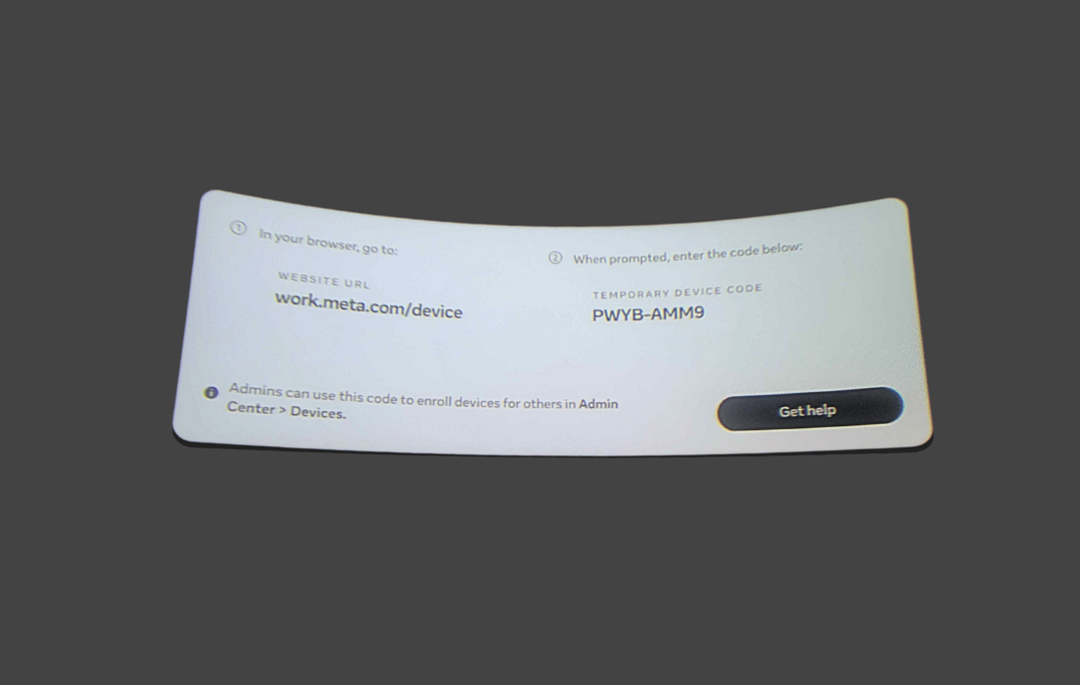
13. Start your device’s out of the box setup.
14. Once your device completes its updates and restarts, click: Connect to your organization.
15. Note down this activation code somewhere, as you will need it in the coming steps.
Tip: Headsets won’t make noise or flash while provisioning. You’ll need to pick them up and press the power button (quick press) to check progress. The screen may sleep, even if processes are running in the background. Let black screens sit for a while (they may be installing).
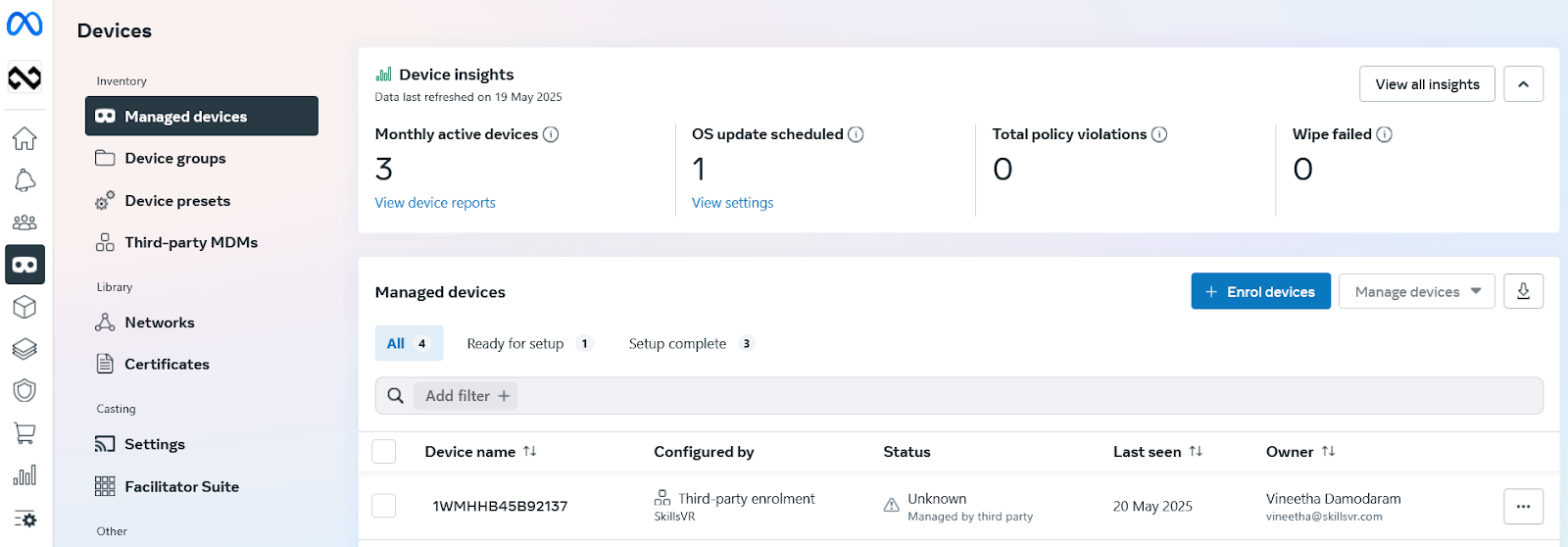
16. In your Meta Admin Centre, navigate to Devices > Managed Devices.
17. Click: Enroll devices.
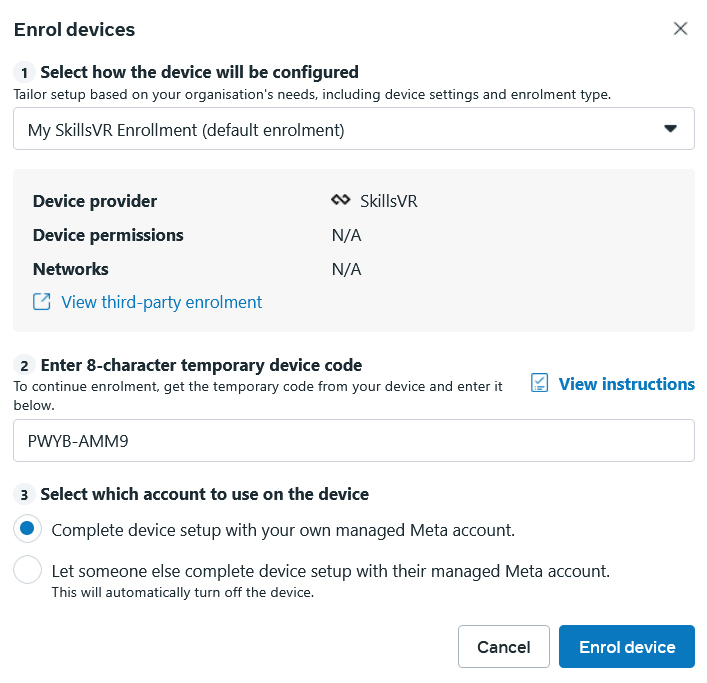
18. Select your previously created enrollment from the dropdown. If it is your default enrollment it will be immediately visible, if not, you will need to select: Third-party enrollments to see it.
19. Enter the activation code from Step 15.
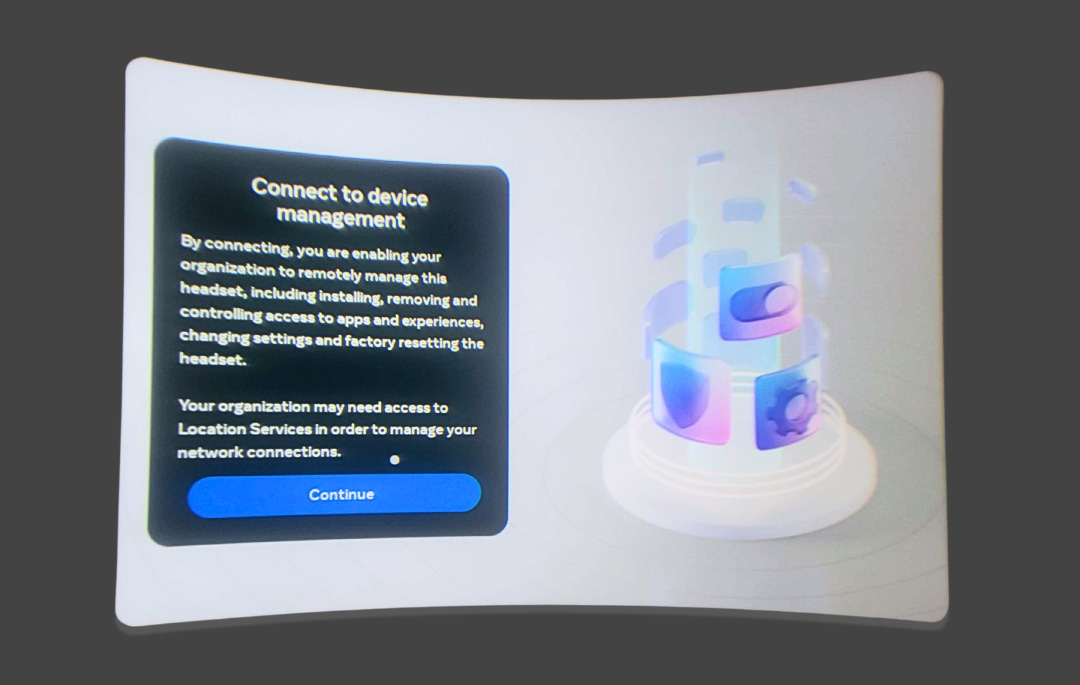
20. Return to your device. Once it has connected, continue through the Meta setup screens.
21. Proceed through device setup screens, you may need to select 'Confirm' or 'Continue' at various times.
Note: At this stage, the headset may prompt for a 4-digit passcode. This can be any code you create- it’s typically used to lock access for demo or lending scenarios. If forgotten, rebooting the device will prompt for a new code.
You are all set up!
Once your device reboots, you can begin using SkillsVR ACTIVATE as your chosen MDM. Tip: For large-scale deployments, test one headset to confirm everything’s installed correctly. A quick check now can save major effort later, especially for remote setups.